
Edit by prompt gallery
Edit an existing image by typing the change: swap the background, recolor objects, relight the scene, restore details, or apply a grade. Copy a prompt and try the Image Editor tool.
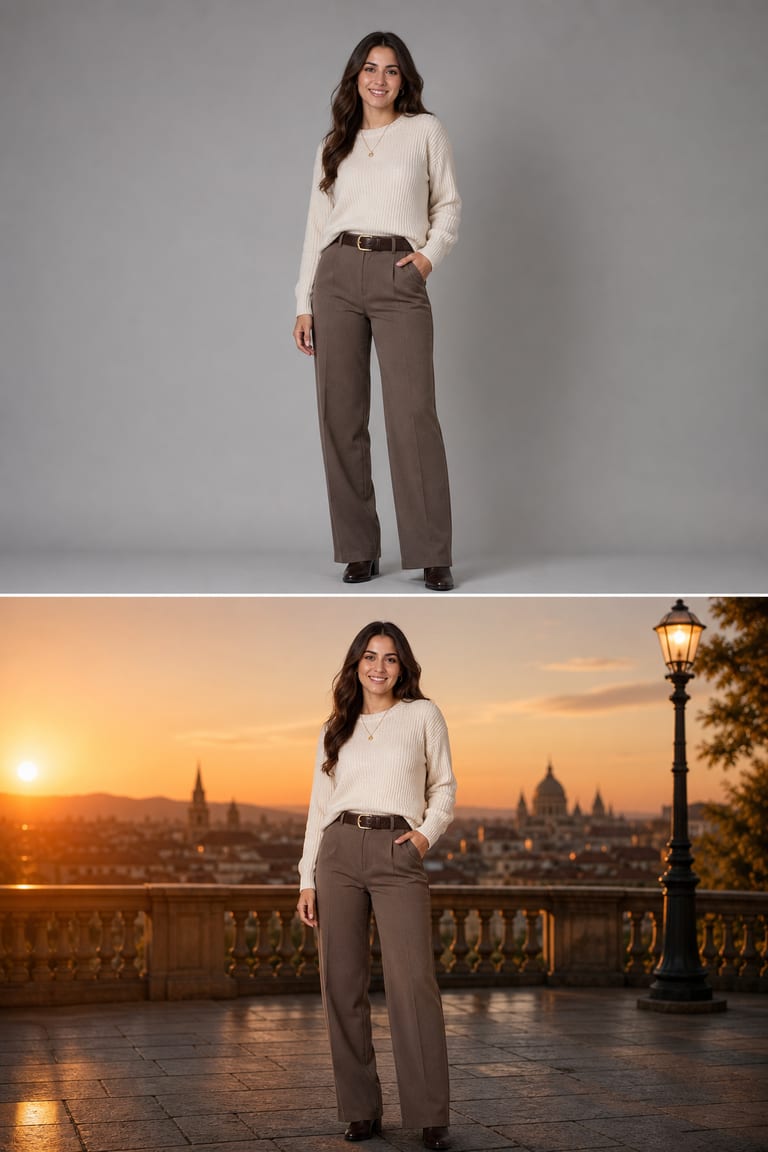
Examples & prompts
Copy a prompt, tweak the details, and make it your own in the studio.
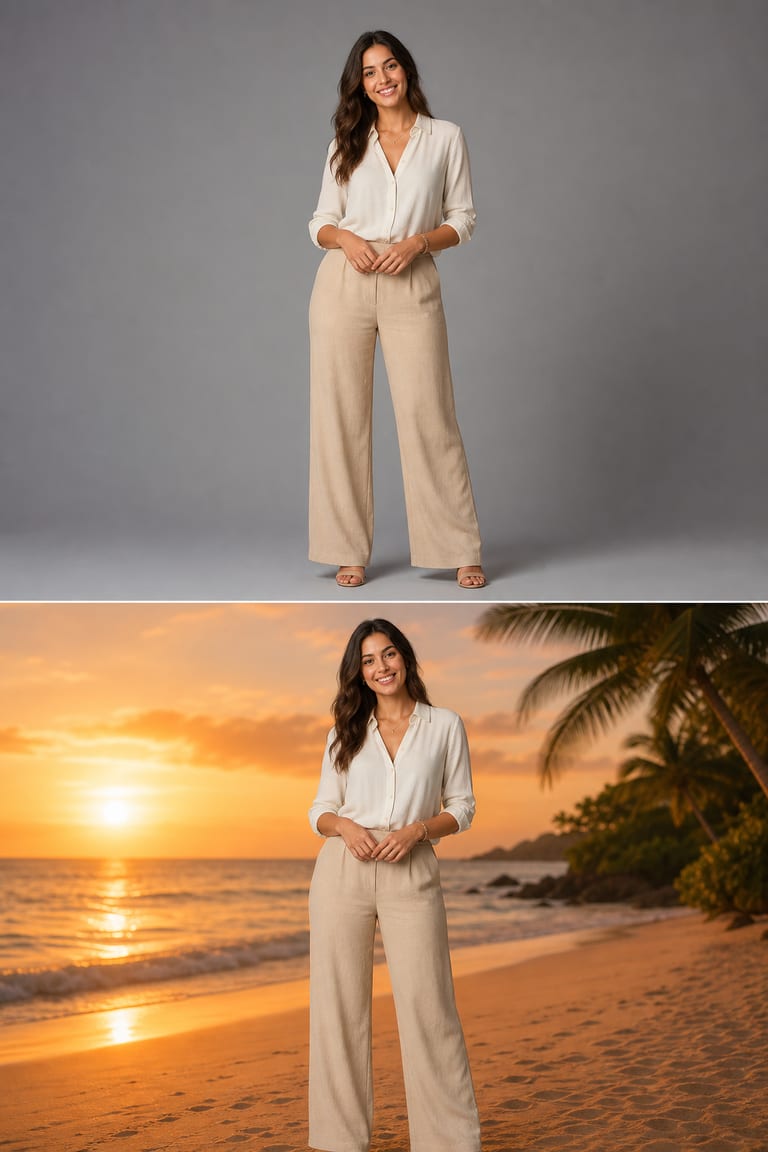
“Replace the grey studio backdrop with a tropical beach at sunset; keep the person, pose and lighting unchanged and blend the edges naturally. Match the warm light on the subject.”
seed 7623 · guidance 7.0 · 50 steps · edit mode
Try it yourself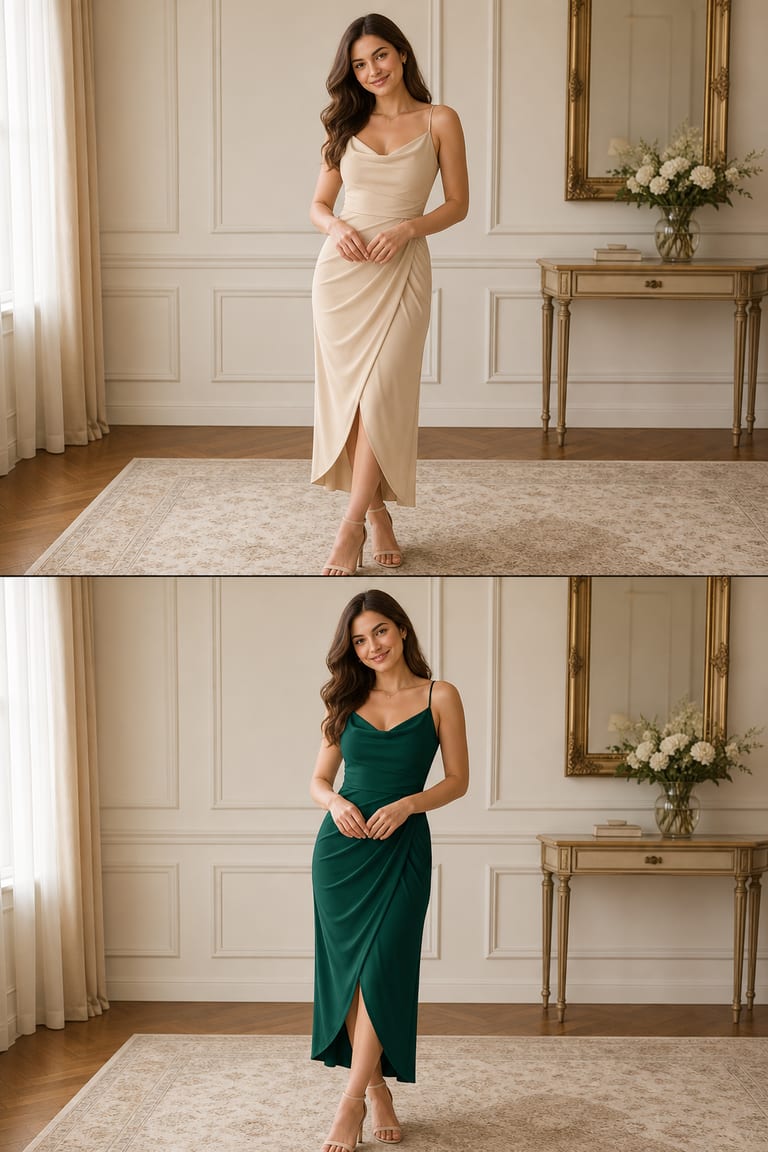
“Recolor the beige dress to deep emerald; keep the pose, skin tone, fabric folds and lighting exactly the same. Change nothing else in the frame.”
seed 1357 · guidance 6.5 · 50 steps · edit mode
Try it yourself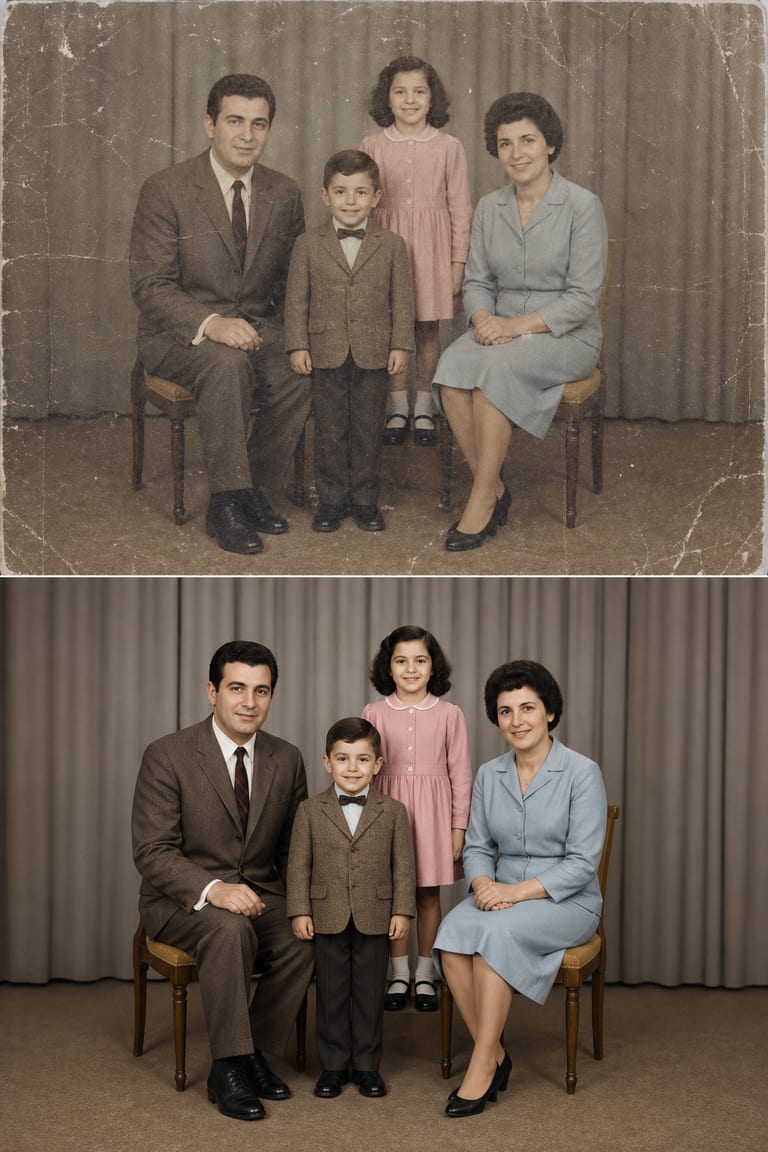
“Restore this old faded photo: remove scratches and dust, sharpen the details, rebuild natural skin tone and add balanced color. Keep the faces and composition unchanged.”
seed 9812 · guidance 6.0 · 50 steps · edit mode
Try it yourselfHow to get great results
Prompt tips tuned to how Vynzo's engines actually work.
Name the exact edit
Tell Vynzo what to change and what to preserve. “Change the wall to warm beige, keep the person, outfit, pose, and window light unchanged” is stronger than “make it better.”
Edit in passes
Make one main change per pass, such as background first, then color, then lighting. Smaller steps give you more control and fewer unwanted changes.
Write a keep-list
For every edit, list the parts that must stay the same: face, hands, product shape, logo area, shadows, or camera crop. This helps the Image Editor protect the original photo.
Adjust guidance
Start with guidance around 5–7 for prompt edits. Raise it when the change is too weak, or lower it if Vynzo changes areas you wanted to keep.
The tool behind it
Image Editor
FAQ
How do I edit a photo by typing a prompt?
Upload a photo, then type the change you want. You can swap backgrounds, recolor items, relight scenes, or restore details.
Can I change the background or colors in an existing photo?
Yes. Ask for a new background, color change, lighting update, or cleanup while keeping the main subject intact.
How do I write a good prompt for edit by prompt?
State what to change and what to keep. Be specific about background, color, lighting, texture, and any areas that should stay the same.
New to prompting? Our guide to writing AI image prompts walks you through it.
More to create
Your idea, made real.
New accounts get a couple of free starter credits — copy a prompt above and make your first one.